
Setting up email accounts in Thunderbird (Mac)

Things you'll need
- Email account: If you don't have an email account, you'll need to create one in your Toolkit first. For more information, see How to create an email account in your Toolkit.
- Incoming mail server(POP): ftp.rwdigital.com.au
- Outgoing mail server(SMTP): see your ISP's SMTP server
- Email account user name: Your full email address is the user name.
- Email account password: If you've forgotten your password, you can recover it from the Email setup page in your Toolkit.
Setting up your email account

1. Open your Mac OS X Mail.
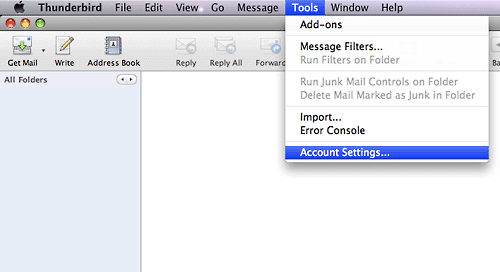
2. Click the Tools menu, and then select Account Settings.
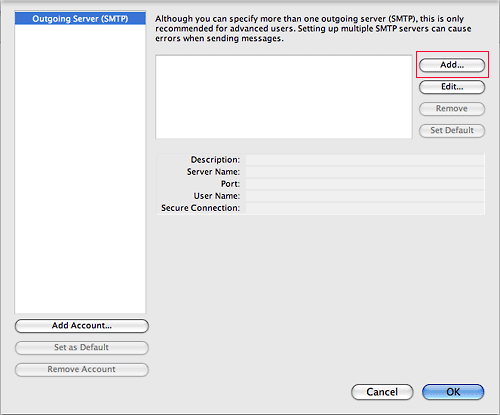
3. Click the Add button on the right.
Note: If you've already added your outgoing mail server (SMTP), go to step 5.
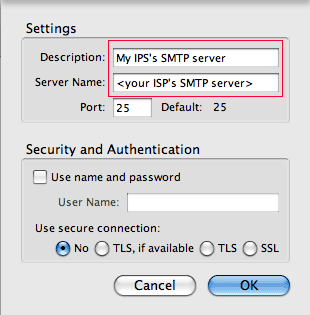
4. In the pop-up window, complete the following fields:
Description: Enter a description for your outgoing mail server (SMTP), such as My outgoing mail server.
Server Name: Enter your ISP's SMTP server address.
Port: Keep the default value (25) in this field.
Use name and password: Make sure this option is not selected.
When you're finished, click OK.
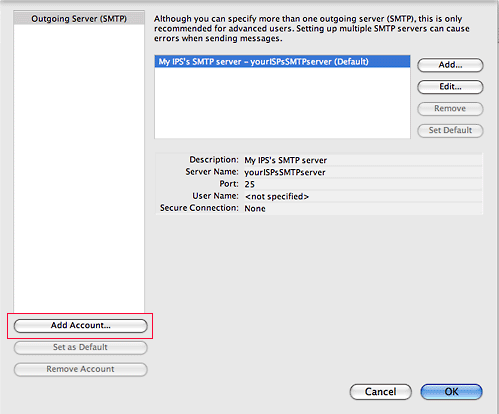
5. Back to the Account Settings window, click the Add Account button on the left.
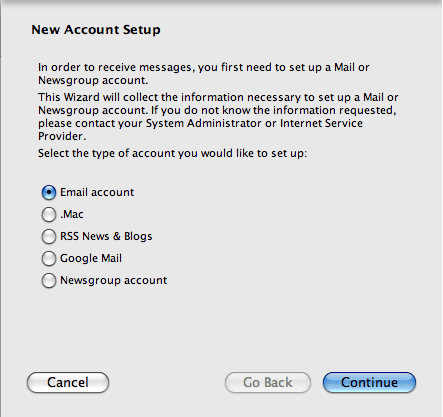
6. In the New Account Setup window, select the Email Account option, and then click Continue.
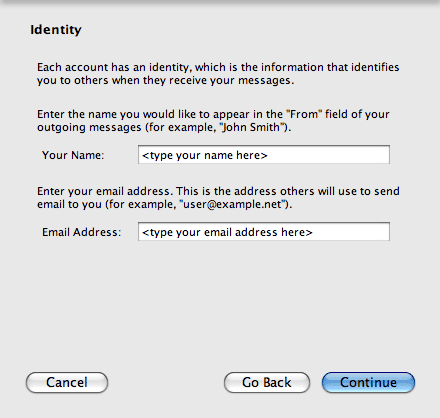
7. In the Identity window, enter your name and email address, and then click Continue.
The name and email address you've entered will appear on all emails you send out.
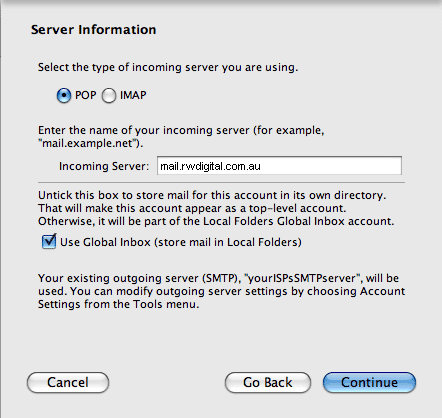
8. In the Server Information window, select POP or IMAP (see POP3 vs. IMAP), and then enter rwdigital.com.au in the Incoming Server field. When you're finished, click Continue.
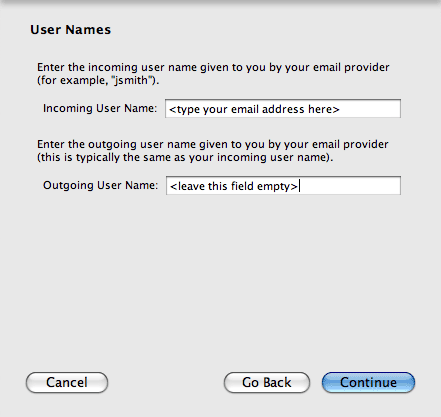
9. In the User Names window, enter your full email address in the Incoming User Name field, leave the Outgoing User Name field empty, and then click Continue.
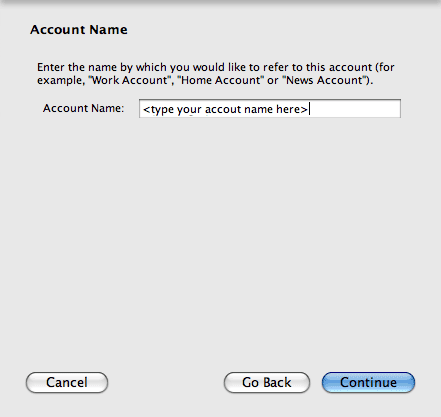
10. In the Account Name window, enter a name for this account (such as Home account or Work account), and then click Continue.
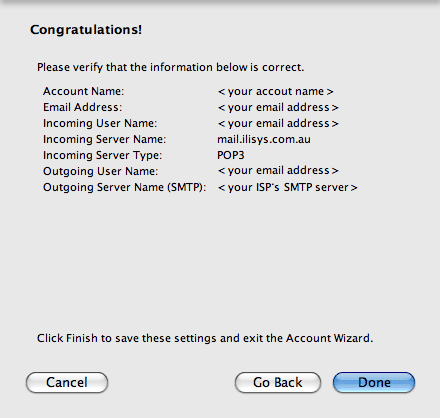
11. In the final window, review the details you've entered. If everything is correct, click Done.
You've now successfully set up your email account in your Thunderbird.